Everything adds up.
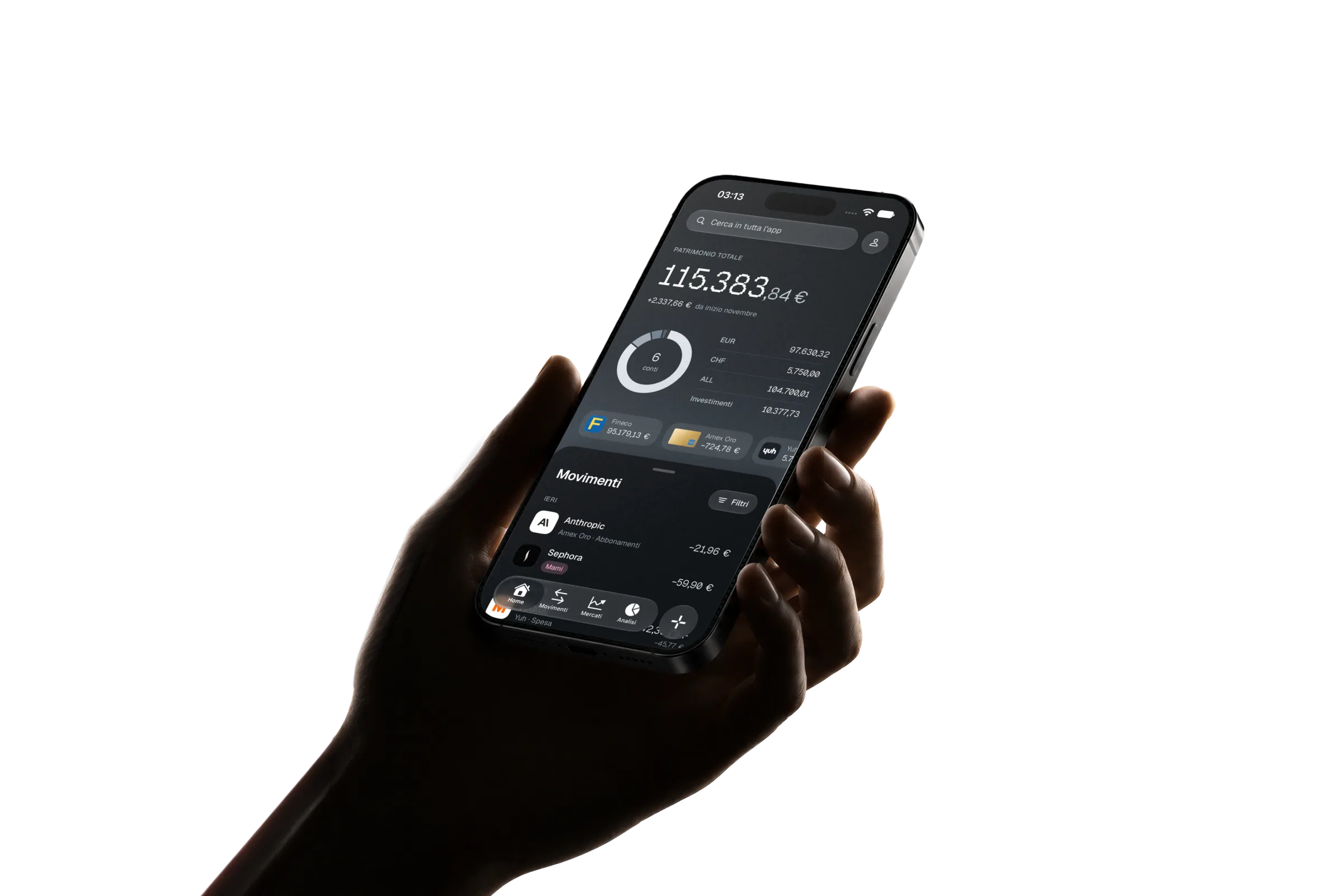
Quadra Finance brings all your finances together.
Bank accounts, credit cards and investments,
all in one place.
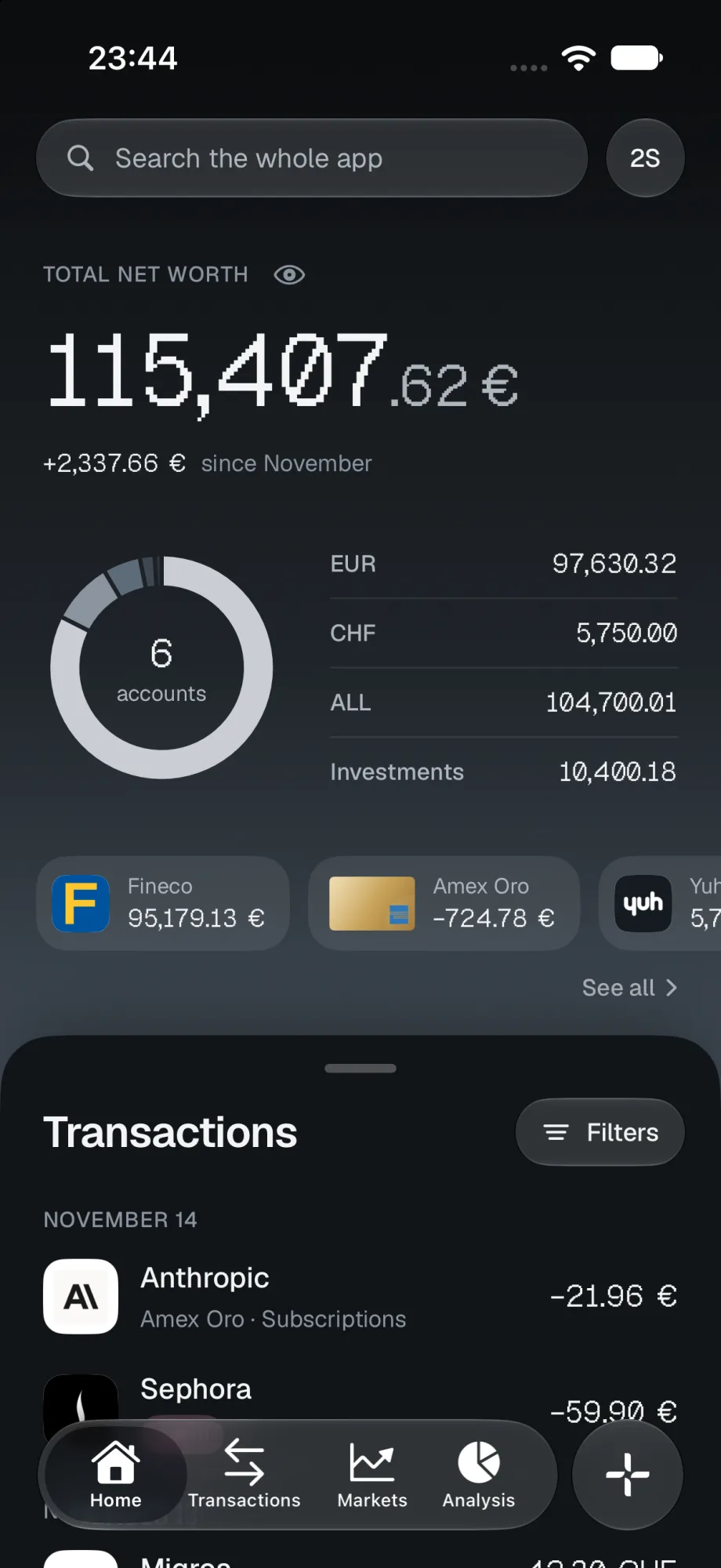
Every account. One net worth.
Current accounts, credit cards, cash and investments converge in a single view, updated with every transaction.
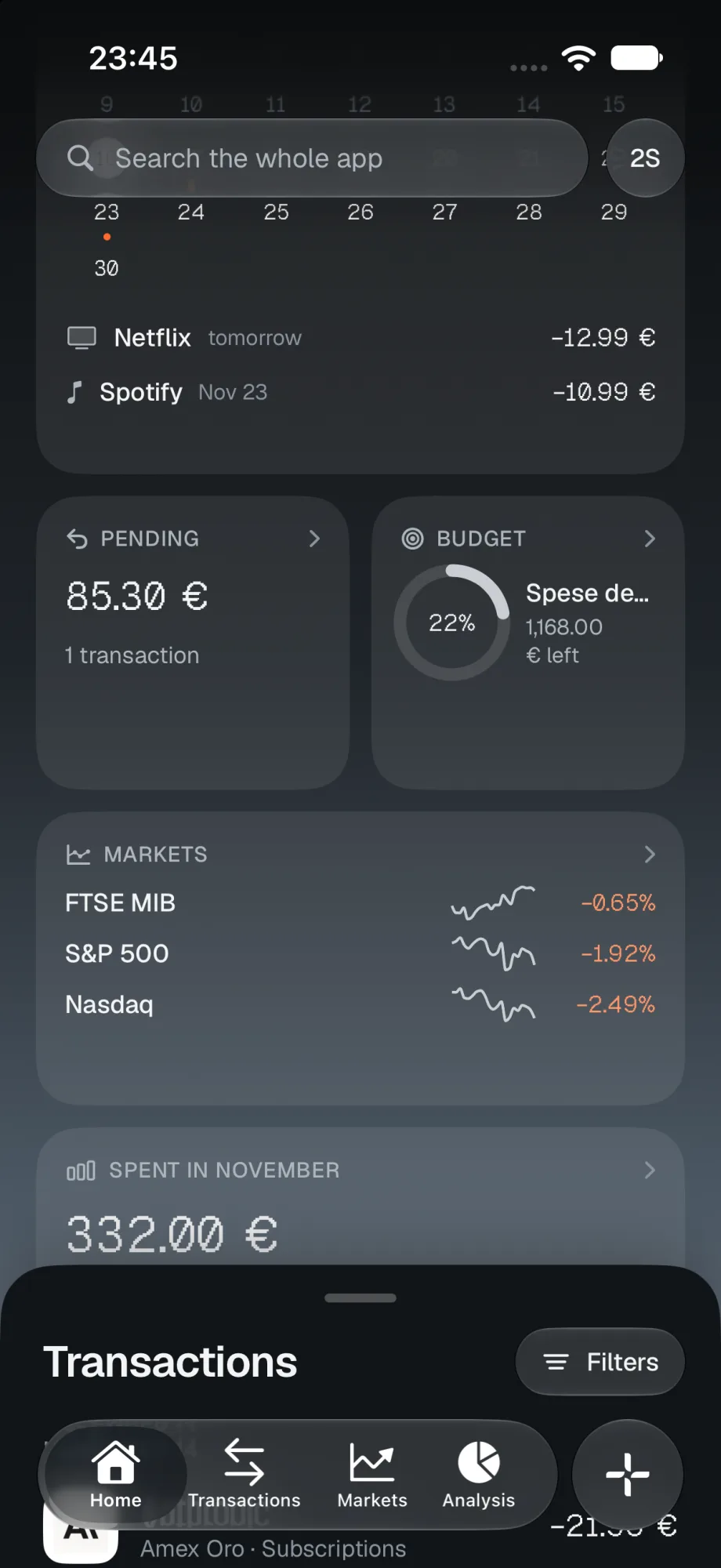
The transactions panel slides over your net worth; lower it to reveal configurable widgets: upcoming payments, pending amounts, budgets and markets.
Every transaction, in its place.
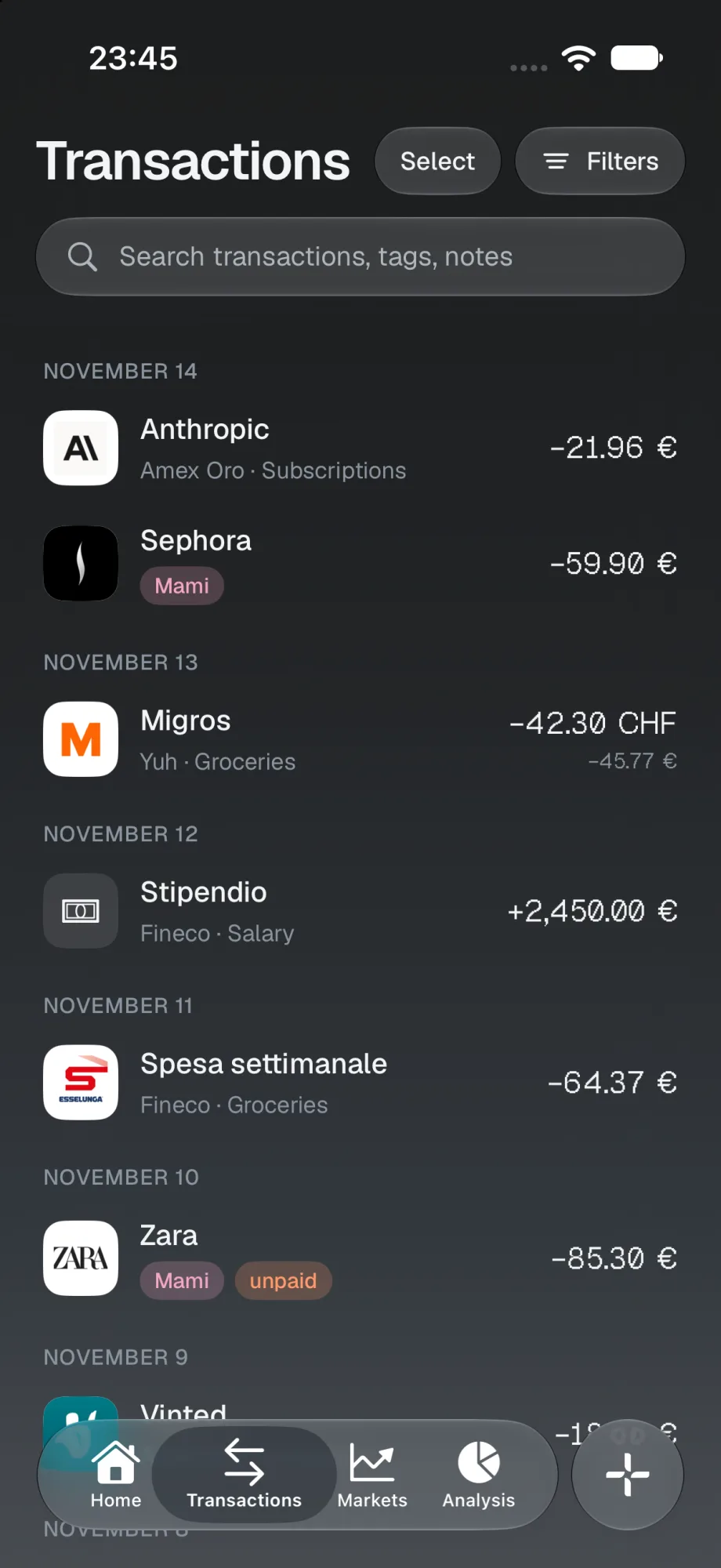
Date, account, category and merchant, laid out with the clarity of a bank statement. Instant search across text, tags and notes.
- Tags
- Free-form labels in the colour of your choice, to group transactions by any criterion.
- Amounts to be repaid
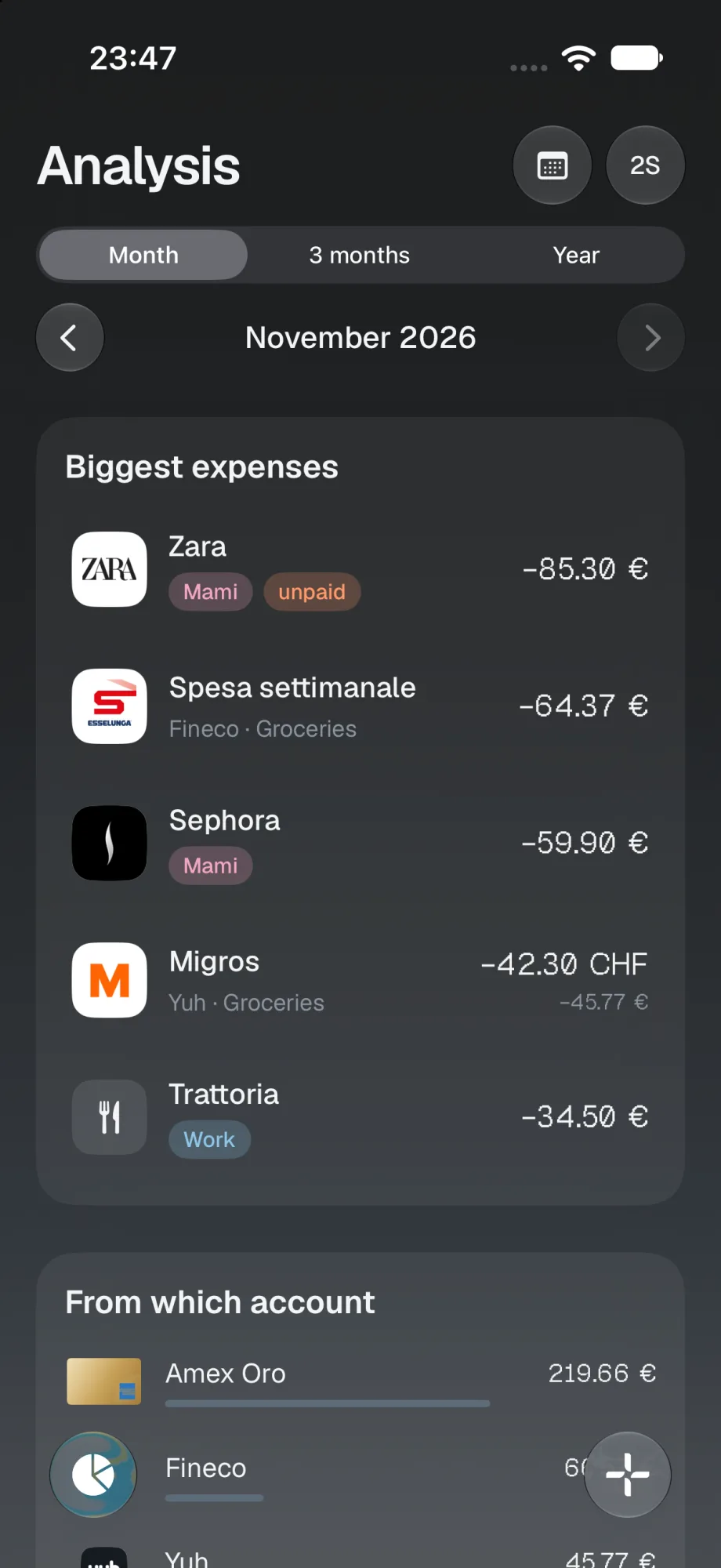
- The “unpaid” tag tracks what is owed to you and closes with “Mark as paid”. The pending total stays visible on Home.
- Multi-currency
- Every foreign-currency expense shows the original amount alongside its equivalent in your main currency.
- Automatic rules
- Titles and categories assigned automatically to recurring transactions, including those already recorded.
- Excluded transactions
- Transfers and refunds stay in the balance, excluded from analysis and budgets.
- Multiple selection
- A long press to select and edit several transactions in a single gesture.
Bank statements, processed on device.
The file downloaded from your bank is read entirely on your iPhone. No connection to the bank, no credentials, no intermediary server.
File selection
CSV and Excel from any bank. PDF statements for a selection of banks, with more added over time.
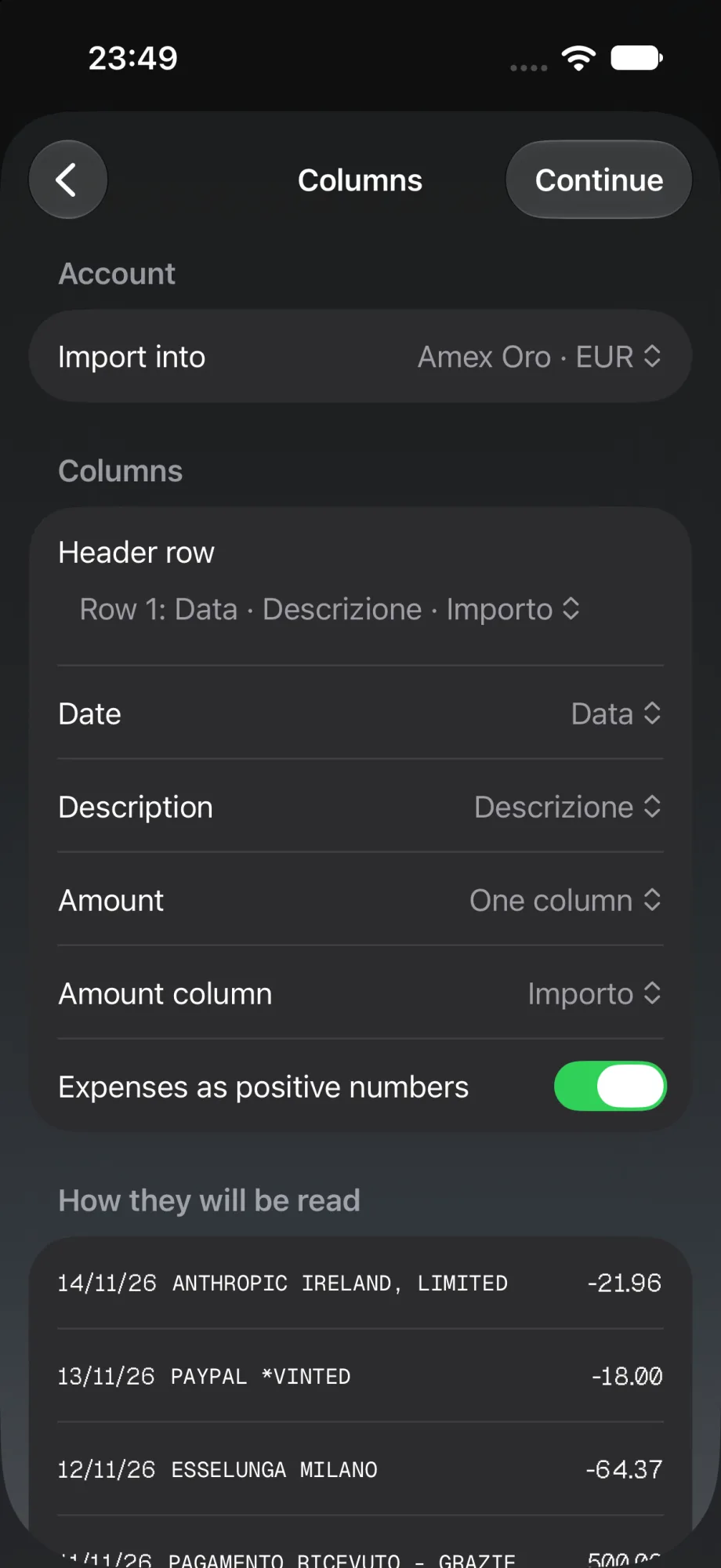
Column mapping
Date, description and amount are recognised and previewed, with configurable sign for expenses. Settings are saved for future imports.
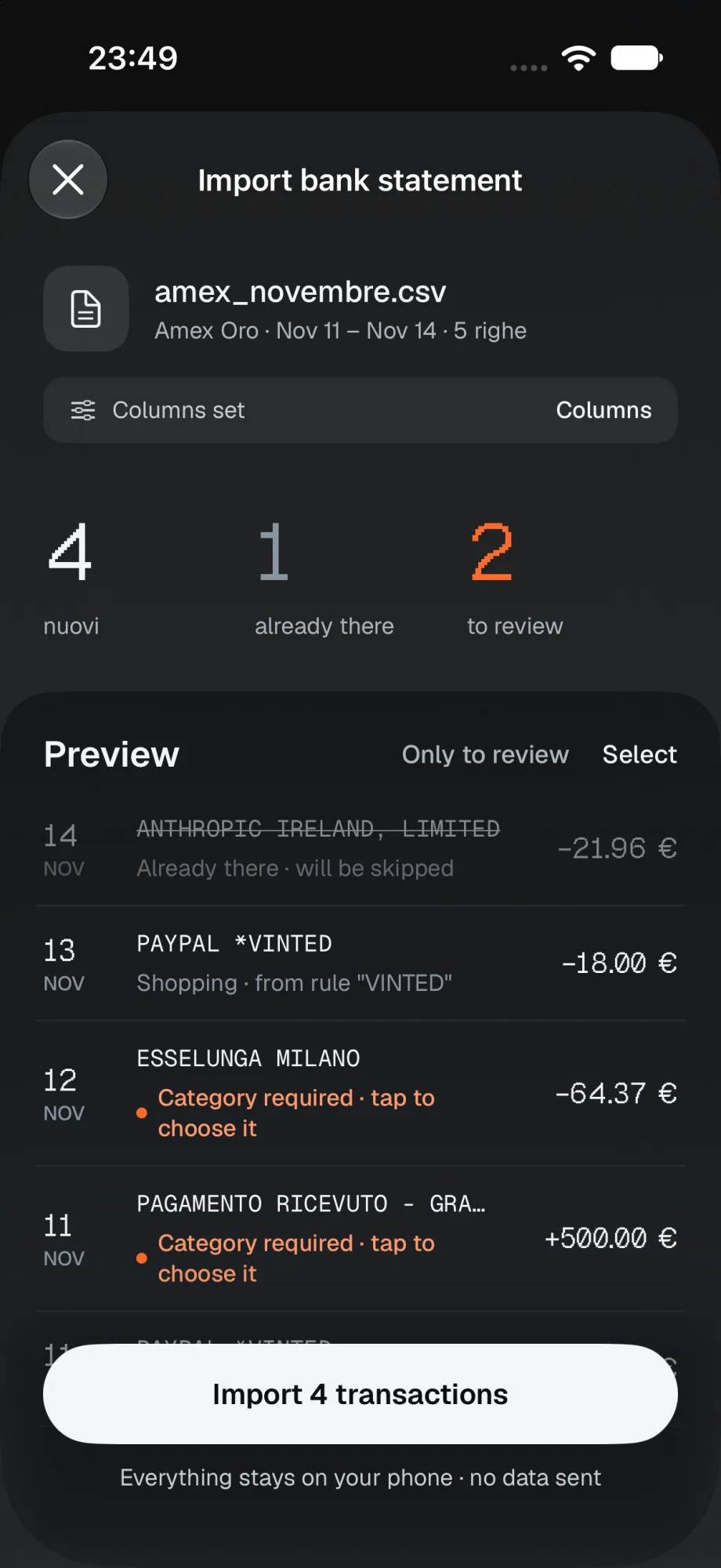
Review and import
Each row is classified as new, already present or to be reviewed. Categories and exclusions are set before confirming.
Everything stays on your phone · no data sent
Every transaction, exactly once.
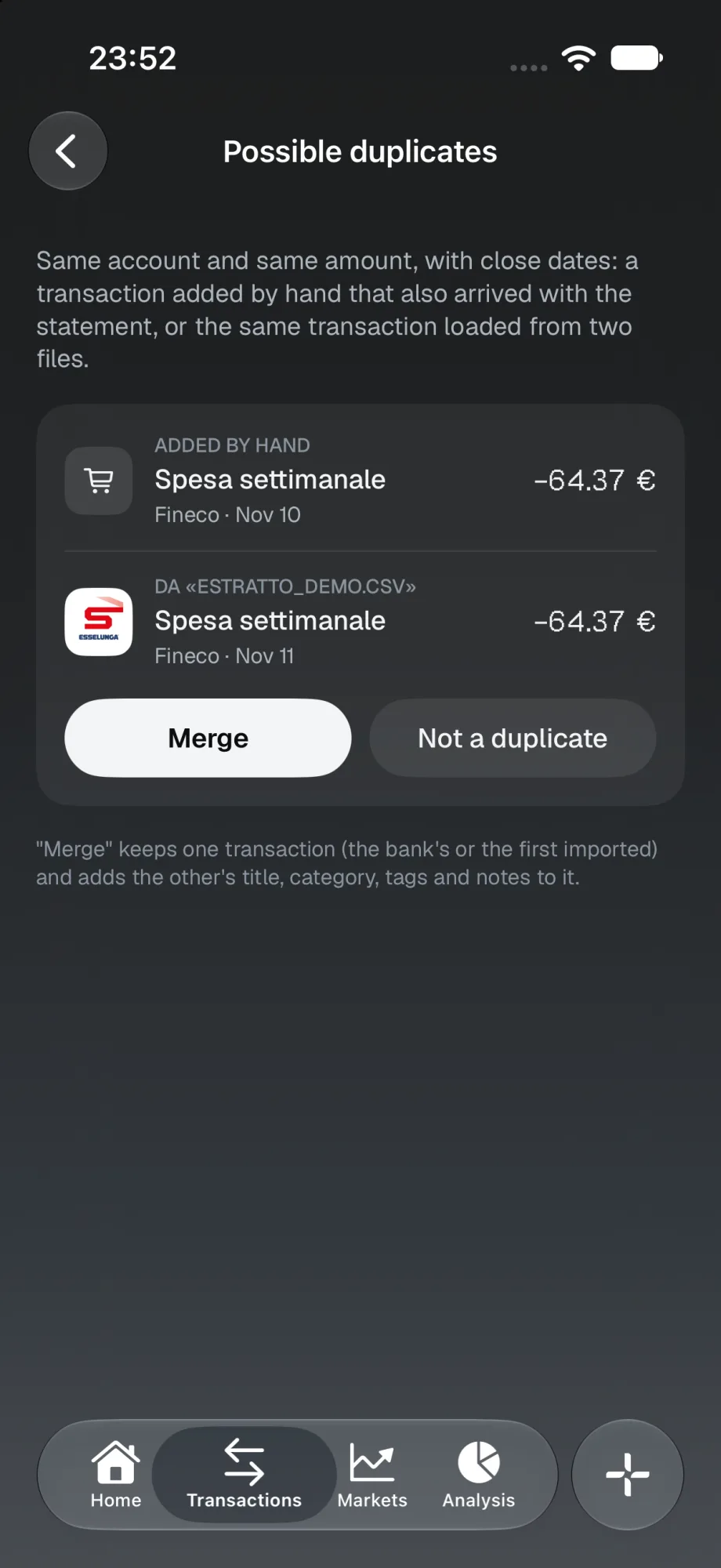
When an expense entered by hand also appears in a statement, or when two files overlap, Quadra identifies the match and asks for your confirmation.
- Criterion
- Same account, same amount, with a booking date from one day before to five days after.
- Manual entries
- Merging keeps the bank's transaction and inherits its title, category, tags and notes.
- Overlapping statements
- Transactions already imported are recognised and left out of the new import.
- Explicit confirmation
- Nothing is merged automatically: “Merge” or “Not a duplicate”.
Investments, alongside your accounts.
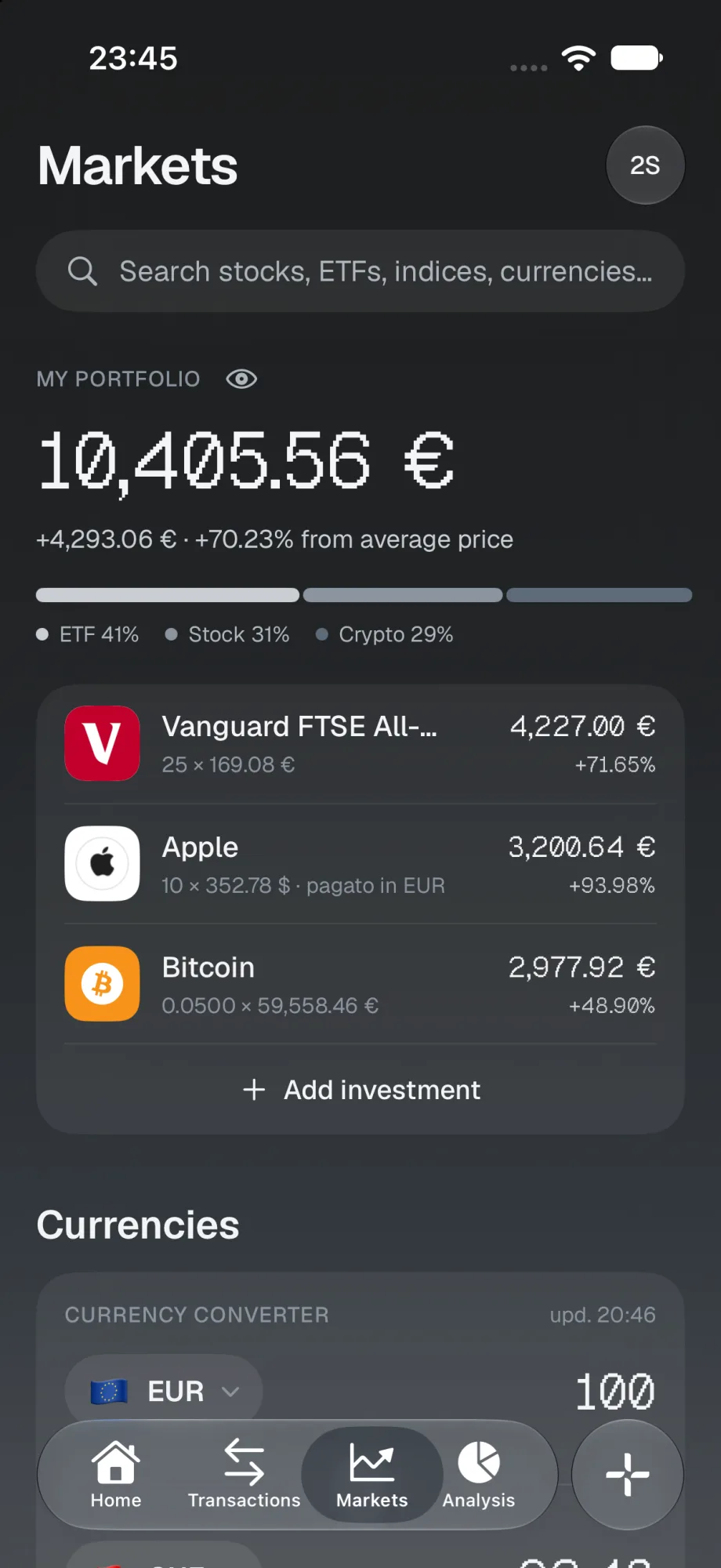
ETFs, stocks, crypto and metals, with quantity and average cost. The portfolio follows market prices and flows into your net worth.
- Yahoo Finance quotes
- Stocks, ETFs, indices, currencies and crypto, with market data from Yahoo Finance.
- Indices on Home
- FTSE MIB, S&P 500, Nasdaq or the indices you choose, with the day's performance.
- Currency converter
- A converter always at hand, updated to the latest available rate.
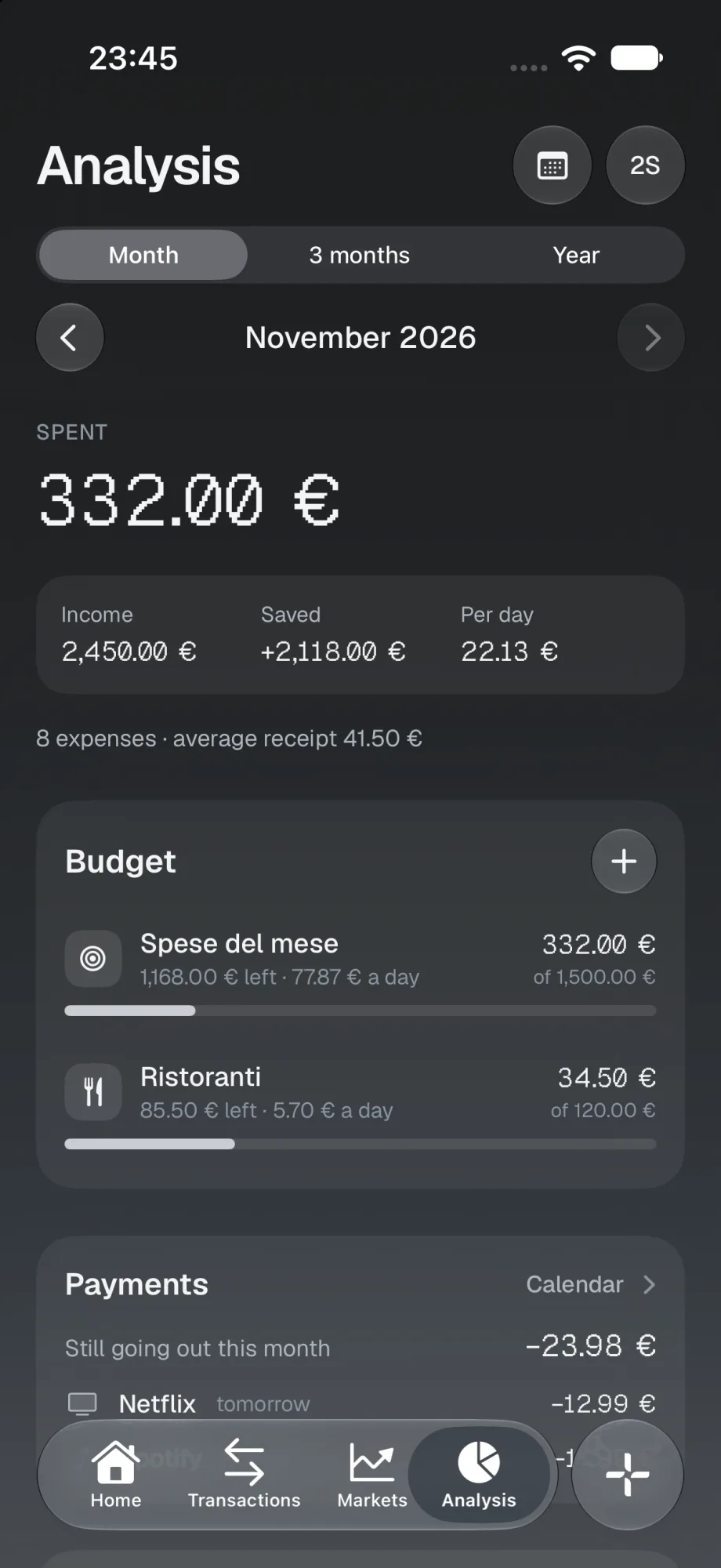
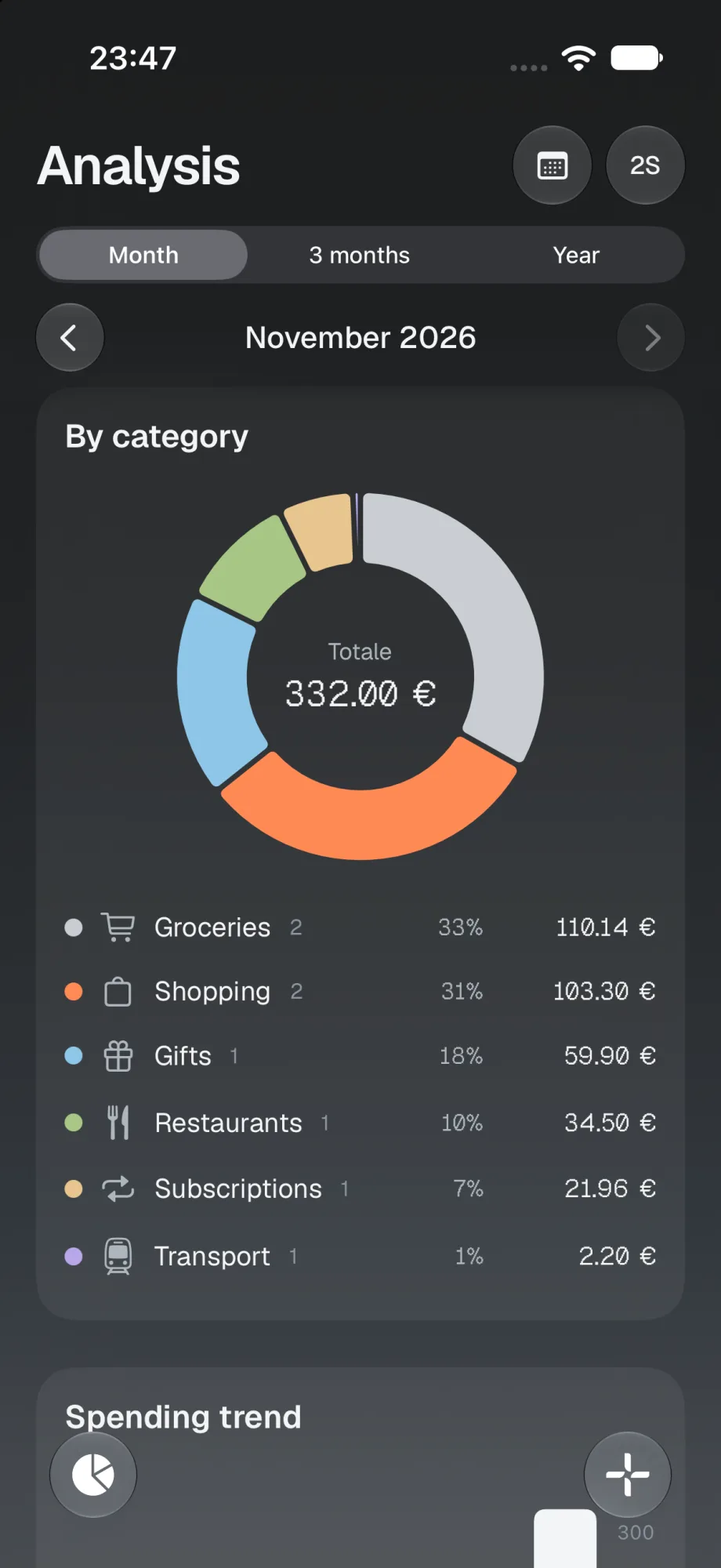
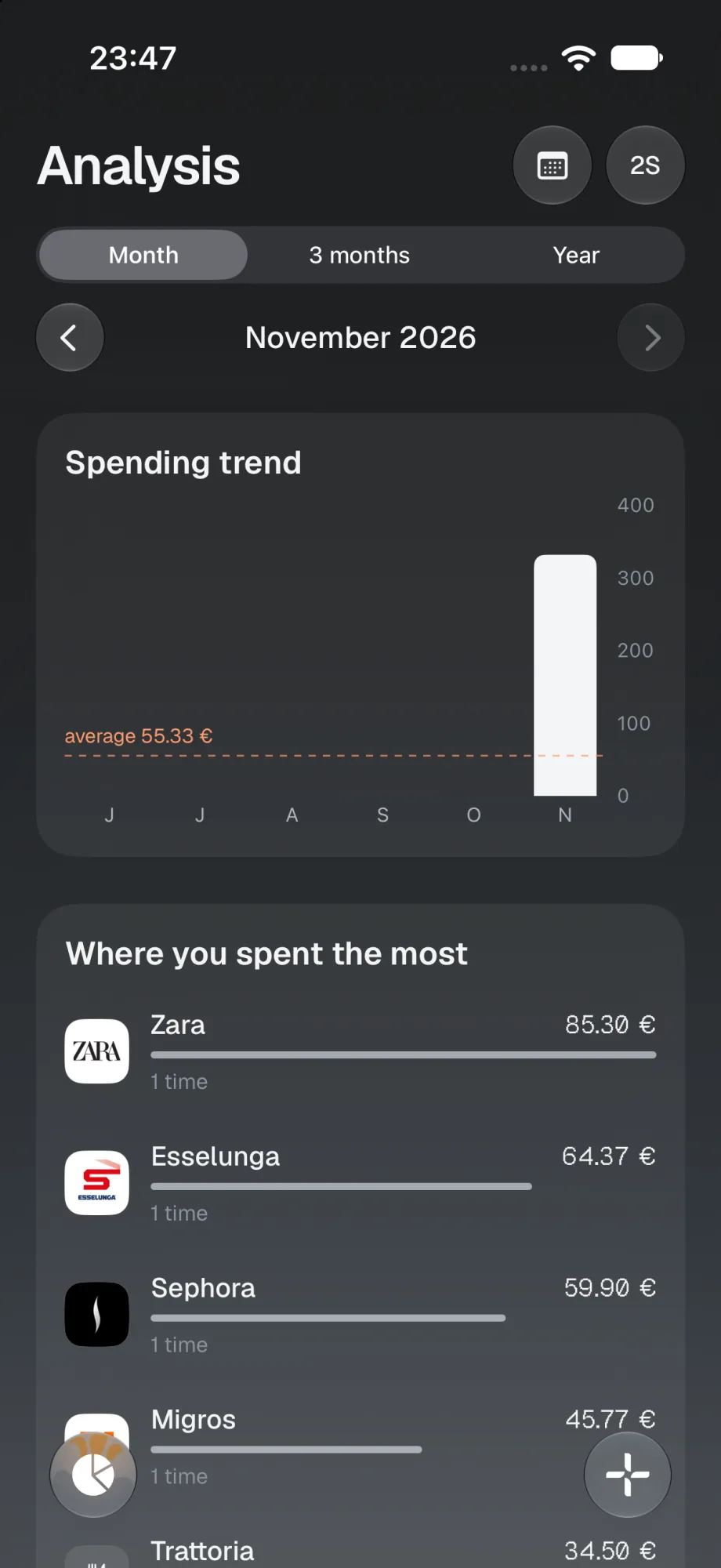
Where the money goes, month by month.
Spending, income and savings by month, quarter or year. Categories, trends, merchants, accounts and weekdays in a single reading.
Budgets, under control.
Monthly, weekly or yearly, on all spending, a single category or a tag. With the remaining amount and the daily allowance until the end of the period.
Upcoming payments, ahead of time.
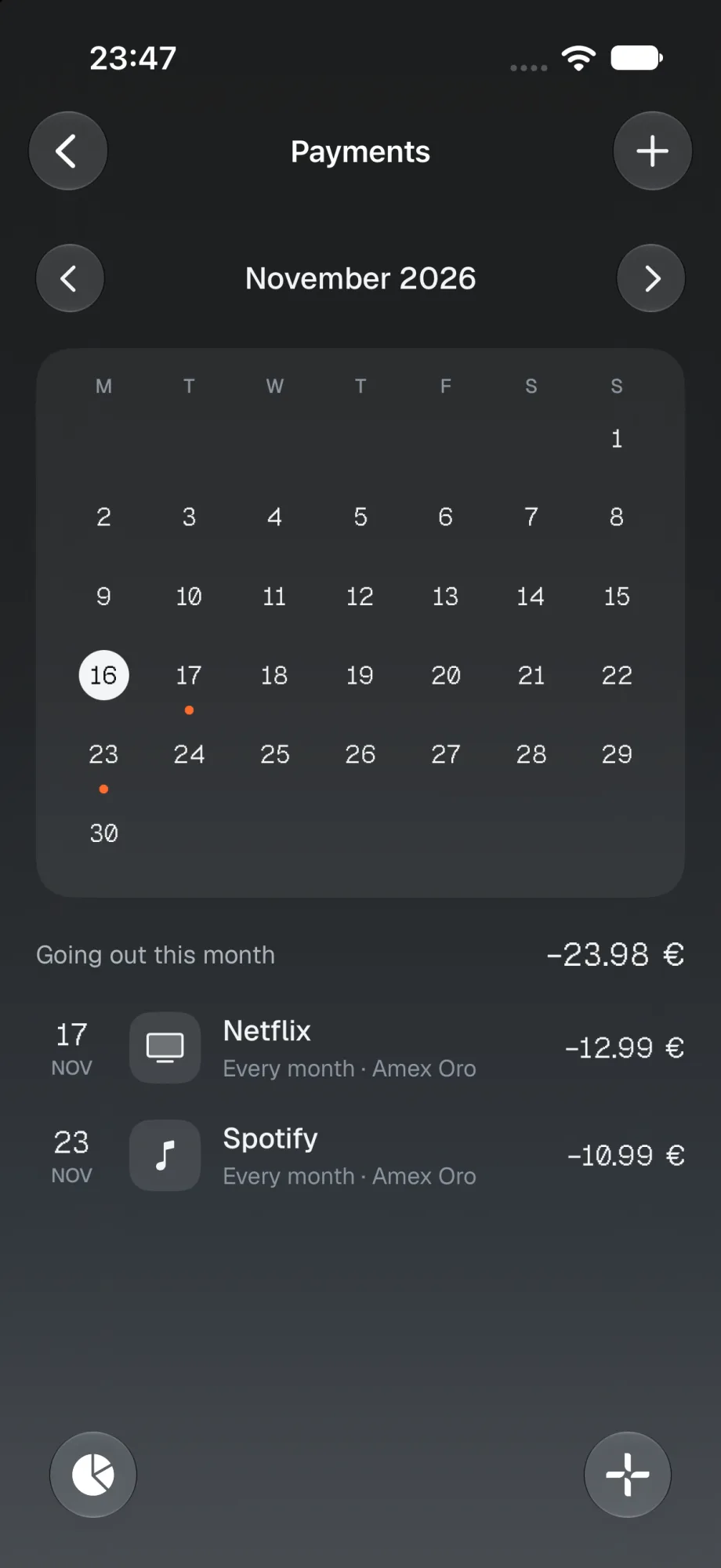
Subscriptions, instalments, utilities and one-off payments in a calendar, with the total still due this month.
- Card statement
- From the closing and debit dates, Quadra creates the card's payment with the amount for the period and keeps it up to date.
- Notifications
- A few days before and on the day itself. On request, also for every Apple Pay purchase and as a weekly or monthly summary.
- Apple Pay
- The “Log expense” action in Shortcuts, combined with a Transaction automation, turns every payment into a transaction.
Everything stays on your phone.
No account, no server, no access to your data. Statements are processed on device; the only network requests concern market quotes and exchange rates.
- No account
- No sign-up, no email address. The app is ready from the first launch.
- No bank access
- Bank credentials are never requested: you import the files you download.
- Face ID
- Access protected by Face ID or passcode, when enabled.
- Backup
- A complete backup in a single file, storable in iCloud Drive and restorable on a new device. Transactions export to CSV.
- iPhone, iPad and Mac
- On iPad and Mac, an interface with a sidebar and transactions alongside your net worth.
- Seven languages
- Italian, English, French, German, Spanish, Albanian and Chinese.
Frequently asked questions
For any other request, support is available.
Does Quadra connect to my bank account?
No. Quadra never asks for bank credentials and uses no aggregation services. Statements are downloaded from your bank and imported into the app.
Which banks are supported?
Any bank that exports to CSV or Excel (.xlsx): the column mapping is set once and saved. PDF import is available for a selection of banks, with more added over time. To suggest a bank: support@2442.studio.
Is my data sent to a server?
No. Transactions, accounts and imported files remain on the device. The only connections retrieve quotes from Yahoo Finance and exchange rates, without transmitting personal data.
What happens if I import the same statement twice?
Transactions already present are recognised and excluded. Manual entries are proposed for merging, which only happens after confirmation.
Can I manage several currencies?
Yes. Each account keeps its own currency and your net worth is converted into your reference currency.
Can Apple Pay purchases be recorded automatically?
Yes, through a “Transaction” automation in Shortcuts with Quadra's “Log expense” action: every payment becomes a transaction, with amount and merchant.
How do I back up or move to a new iPhone?
In Settings, export a complete backup to a file and keep it, for example, in iCloud Drive. On the new device, restore it with “Import from backup”.
Can the appearance be customised?
Yes: light, dark or automatic mode, several themes (Steel is the default) and a tab bar with configurable order and labels.
Support
Reports and suggestions go directly to the development team. From the app, under Settings → Help & support, messages already include the necessary technical information, without any financial data.
Download Quadra. Make everything add up.
For iPhone, iPad and Mac.